
- Home
- SEODiscover the latest updates from across the United States, including politics, culture, economy, and trending stories. Stay informed on the key events shaping the nation and the topics everyone’s talking about.
- Technical SEOLearn technical SEO concepts including crawling, indexing, XML sitemaps, robots.txt, canonical tags, site architecture, and website performance.
- Local SEOOptimize your business for local seo with Google Business Profile, local citations, reviews, maps, and location-based SEO.
- Mobile SEOImprove your website’s mobile seo performance with responsive design, mobile-first indexing, usability, and page speed optimization.
- On-Page SEOExplore on-page seo optimization techniques such as title tags, meta descriptions, headings, URLs, internal linking, and content optimization.
- Off-Page SEODiscover off-page SEO strategies such as backlinks, digital PR, brand mentions, outreach, and authority building.
- SEO ToolsExplore the best SEO tools for keyword research, technical audits, backlink analysis, rank tracking, and website optimization.
- Core Web VitalsLearn how to improve Core Web Vitals including LCP, INP, CLS, page speed, and overall user experience for better rankings.
- Keyword ResearchLearn how to find profitable keywords, analyze search intent, evaluate competition, and build effective keyword strategies.
- Link BuildingMaster ethical link building techniques, backlink analysis, outreach methods, guest posting, and authority growth strategies.
- Google Search ConsoleLearn how to use Google Search Console to monitor indexing, fix errors, analyze search performance, and improve SEO.
- SEO BasicsLearn the fundamentals of search engine optimization (SEO Basics), including how search engines work, SEO terminology, and beginner-friendly best practices.
- Paid Media
- Display AdvertisingLearn display advertising strategies, banner ads, audience targeting, remarketing, Google Display campaigns, and optimization techniques.
- Google AdsLearn Google Ads strategies, campaign setup, bidding, keywords, Performance Max, Search Ads, and optimization techniques.
- LinkedIn AdsLearn LinkedIn Ads strategies for B2B marketing, lead generation, audience targeting, campaign optimization, and paid social advertising.
- Meta AdsLearn Meta Ads strategies for Facebook and Instagram, including campaign setup, targeting, retargeting, and performance optimization.
- Paid Media AnalyticsLearn paid media analytics, including CPC, CTR, CPA, ROAS, conversion tracking, attribution, reporting, and campaign performance analysis.
- PPC StrategyLearn effective PPC strategies, campaign planning, bidding, keyword targeting, landing pages, conversion optimization, and more.
- ContentTransform your living spaces with inspiration, tips, and trends in interior design. From minimalist decor to bold statements, find ideas for every style and budget.
- Social
- Digital MarketingExplore stories and advice on living your best life. From personal growth to entertainment, dive into the latest in lifestyle trends and inspiration.
- Artificial IntelligenceStay informed about health and wellness with expert advice, fitness tips, and the latest medical breakthroughs. Your guide to a healthier and happier life.
- DevelopmentYou will find development related educational articles
- GTMLearn Google Tag Manager (GTM) with practical guides for tags, triggers, variables, tracking, conversions, and website analytics implementation.
- HTMLLearn HTML with simple tutorials, examples, tags, elements, attributes, and best practices for building modern web pages.
- HTML CSSLearn HTML CSS together with practical tutorials, examples, layouts, styling techniques, responsive design, and modern web development practices.
- HTML JSLearn HTML JS – JavaScript with practical tutorials and examples for adding interactivity, dynamic content, events, and functionality to web pages.
- JavaScriptExplore JavaScript tutorials, examples, concepts, and practical techniques for creating interactive and dynamic websites and web applications.
- PHPLearn PHP programming with practical tutorials, examples, functions, syntax, and web development techniques for beginners and developers.
- PythonLearn Python programming with practical tutorials, examples, syntax, functions, automation techniques, and useful programming concepts.
- Home
- SEODiscover the latest updates from across the United States, including politics, culture, economy, and trending stories. Stay informed on the key events shaping the nation and the topics everyone’s talking about.
- Technical SEOLearn technical SEO concepts including crawling, indexing, XML sitemaps, robots.txt, canonical tags, site architecture, and website performance.
- Local SEOOptimize your business for local seo with Google Business Profile, local citations, reviews, maps, and location-based SEO.
- Mobile SEOImprove your website’s mobile seo performance with responsive design, mobile-first indexing, usability, and page speed optimization.
- On-Page SEOExplore on-page seo optimization techniques such as title tags, meta descriptions, headings, URLs, internal linking, and content optimization.
- Off-Page SEODiscover off-page SEO strategies such as backlinks, digital PR, brand mentions, outreach, and authority building.
- SEO ToolsExplore the best SEO tools for keyword research, technical audits, backlink analysis, rank tracking, and website optimization.
- Core Web VitalsLearn how to improve Core Web Vitals including LCP, INP, CLS, page speed, and overall user experience for better rankings.
- Keyword ResearchLearn how to find profitable keywords, analyze search intent, evaluate competition, and build effective keyword strategies.
- Link BuildingMaster ethical link building techniques, backlink analysis, outreach methods, guest posting, and authority growth strategies.
- Google Search ConsoleLearn how to use Google Search Console to monitor indexing, fix errors, analyze search performance, and improve SEO.
- SEO BasicsLearn the fundamentals of search engine optimization (SEO Basics), including how search engines work, SEO terminology, and beginner-friendly best practices.
- Paid Media
- Display AdvertisingLearn display advertising strategies, banner ads, audience targeting, remarketing, Google Display campaigns, and optimization techniques.
- Google AdsLearn Google Ads strategies, campaign setup, bidding, keywords, Performance Max, Search Ads, and optimization techniques.
- LinkedIn AdsLearn LinkedIn Ads strategies for B2B marketing, lead generation, audience targeting, campaign optimization, and paid social advertising.
- Meta AdsLearn Meta Ads strategies for Facebook and Instagram, including campaign setup, targeting, retargeting, and performance optimization.
- Paid Media AnalyticsLearn paid media analytics, including CPC, CTR, CPA, ROAS, conversion tracking, attribution, reporting, and campaign performance analysis.
- PPC StrategyLearn effective PPC strategies, campaign planning, bidding, keyword targeting, landing pages, conversion optimization, and more.
- ContentTransform your living spaces with inspiration, tips, and trends in interior design. From minimalist decor to bold statements, find ideas for every style and budget.
- Social
- Digital MarketingExplore stories and advice on living your best life. From personal growth to entertainment, dive into the latest in lifestyle trends and inspiration.
- Artificial IntelligenceStay informed about health and wellness with expert advice, fitness tips, and the latest medical breakthroughs. Your guide to a healthier and happier life.
- DevelopmentYou will find development related educational articles
- GTMLearn Google Tag Manager (GTM) with practical guides for tags, triggers, variables, tracking, conversions, and website analytics implementation.
- HTMLLearn HTML with simple tutorials, examples, tags, elements, attributes, and best practices for building modern web pages.
- HTML CSSLearn HTML CSS together with practical tutorials, examples, layouts, styling techniques, responsive design, and modern web development practices.
- HTML JSLearn HTML JS – JavaScript with practical tutorials and examples for adding interactivity, dynamic content, events, and functionality to web pages.
- JavaScriptExplore JavaScript tutorials, examples, concepts, and practical techniques for creating interactive and dynamic websites and web applications.
- PHPLearn PHP programming with practical tutorials, examples, functions, syntax, and web development techniques for beginners and developers.
- PythonLearn Python programming with practical tutorials, examples, syntax, functions, automation techniques, and useful programming concepts.
Now Reading: Google Tag Manager Explained Simply: A Beginner’s Guide
-
01
Google Tag Manager Explained Simply: A Beginner’s Guide
- Home//
- SEO//Discover the latest updates from across the United States, including politics, culture, economy, and trending stories. Stay informed on the key events shaping the nation and the topics everyone’s talking about.
- Technical SEO//Learn technical SEO concepts including crawling, indexing, XML sitemaps, robots.txt, canonical tags, site architecture, and website performance.
- Local SEO//Optimize your business for local seo with Google Business Profile, local citations, reviews, maps, and location-based SEO.
- Mobile SEO//Improve your website’s mobile seo performance with responsive design, mobile-first indexing, usability, and page speed optimization.
- On-Page SEO//Explore on-page seo optimization techniques such as title tags, meta descriptions, headings, URLs, internal linking, and content optimization.
- Off-Page SEO//Discover off-page SEO strategies such as backlinks, digital PR, brand mentions, outreach, and authority building.
- SEO Tools//Explore the best SEO tools for keyword research, technical audits, backlink analysis, rank tracking, and website optimization.
- Core Web Vitals//Learn how to improve Core Web Vitals including LCP, INP, CLS, page speed, and overall user experience for better rankings.
- Keyword Research//Learn how to find profitable keywords, analyze search intent, evaluate competition, and build effective keyword strategies.
- Link Building//Master ethical link building techniques, backlink analysis, outreach methods, guest posting, and authority growth strategies.
- Google Search Console//Learn how to use Google Search Console to monitor indexing, fix errors, analyze search performance, and improve SEO.
- SEO Basics//Learn the fundamentals of search engine optimization (SEO Basics), including how search engines work, SEO terminology, and beginner-friendly best practices.
- Paid Media//
- Display Advertising//Learn display advertising strategies, banner ads, audience targeting, remarketing, Google Display campaigns, and optimization techniques.
- Google Ads//Learn Google Ads strategies, campaign setup, bidding, keywords, Performance Max, Search Ads, and optimization techniques.
- LinkedIn Ads//Learn LinkedIn Ads strategies for B2B marketing, lead generation, audience targeting, campaign optimization, and paid social advertising.
- Meta Ads//Learn Meta Ads strategies for Facebook and Instagram, including campaign setup, targeting, retargeting, and performance optimization.
- Paid Media Analytics//Learn paid media analytics, including CPC, CTR, CPA, ROAS, conversion tracking, attribution, reporting, and campaign performance analysis.
- PPC Strategy//Learn effective PPC strategies, campaign planning, bidding, keyword targeting, landing pages, conversion optimization, and more.
- Content//Transform your living spaces with inspiration, tips, and trends in interior design. From minimalist decor to bold statements, find ideas for every style and budget.
- Social//
- Digital Marketing//Explore stories and advice on living your best life. From personal growth to entertainment, dive into the latest in lifestyle trends and inspiration.
- Artificial Intelligence//Stay informed about health and wellness with expert advice, fitness tips, and the latest medical breakthroughs. Your guide to a healthier and happier life.
- Development//You will find development related educational articles
- GTM//Learn Google Tag Manager (GTM) with practical guides for tags, triggers, variables, tracking, conversions, and website analytics implementation.
- HTML//Learn HTML with simple tutorials, examples, tags, elements, attributes, and best practices for building modern web pages.
- HTML CSS//Learn HTML CSS together with practical tutorials, examples, layouts, styling techniques, responsive design, and modern web development practices.
- HTML JS//Learn HTML JS – JavaScript with practical tutorials and examples for adding interactivity, dynamic content, events, and functionality to web pages.
- JavaScript//Explore JavaScript tutorials, examples, concepts, and practical techniques for creating interactive and dynamic websites and web applications.
- PHP//Learn PHP programming with practical tutorials, examples, functions, syntax, and web development techniques for beginners and developers.
- Python//Learn Python programming with practical tutorials, examples, syntax, functions, automation techniques, and useful programming concepts.
Google Tag Manager Explained Simply: A Beginner’s Guide

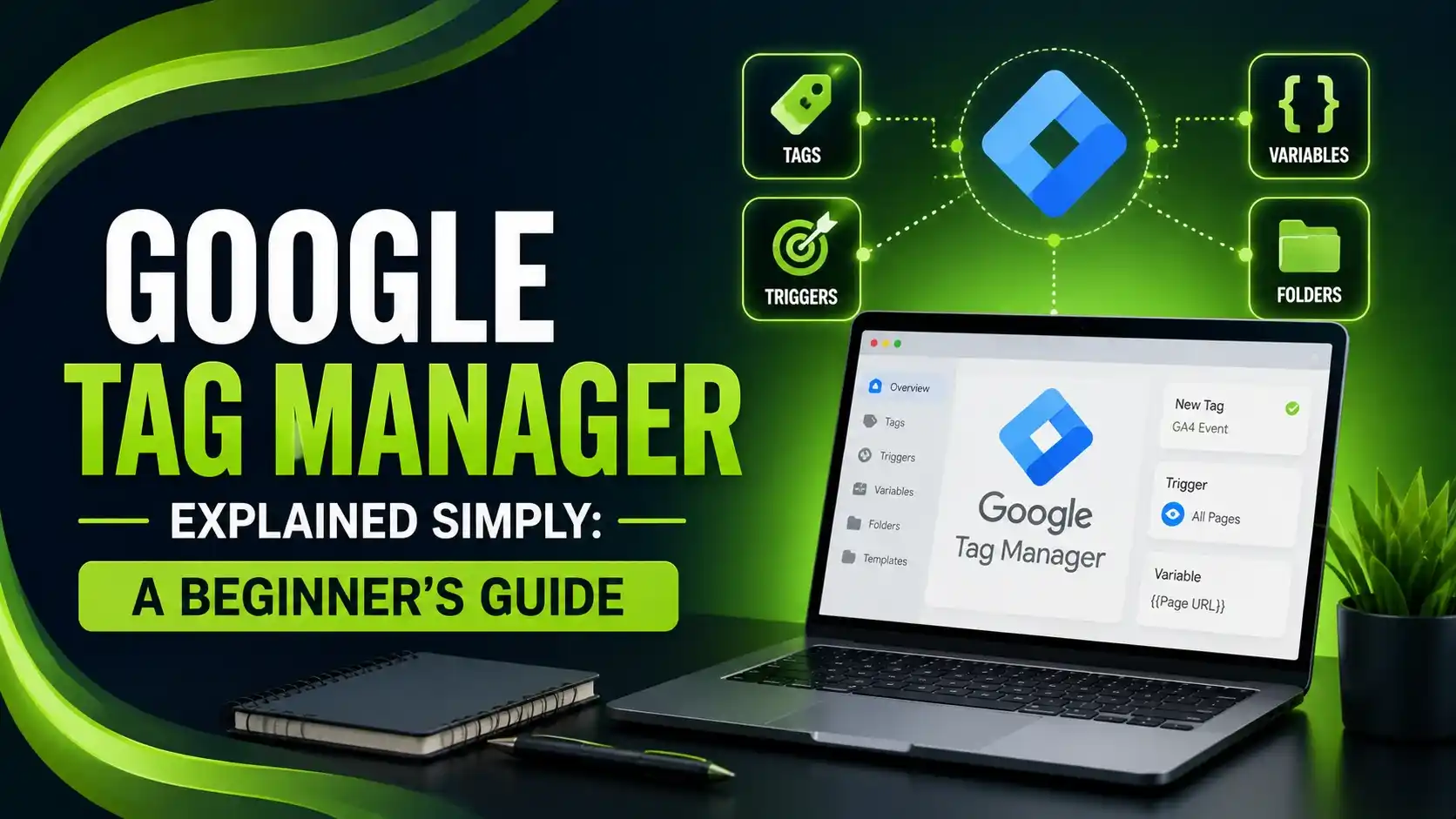
Google Tag Manager is the tool that lets you add or change tracking codes on your website without touching the site's code every time.
Table of Contents
ToggleGoogle Tag Manager is the tool that lets you add or change tracking codes on your website without touching the site's actual code every time. Before it existed, adding something as simple as a Facebook Pixel meant emailing a developer and waiting days, sometimes weeks, for a two-line code change.
Google Tag Manager Explained
Google Tag Manager - GTM fixes that. You install one container once, and everything else, Google Analytics, Google Ads conversion tags, Meta Pixel, gets managed from a single dashboard instead of scattered across your site's source code.
This guide covers exactly what it is, how the pieces fit together, and how to get your first tag live.
01Google Tag Manager Explained Simply
Google's own documentation defines it plainly: it allows tag configuration and deployment on websites or mobile apps through a web interface, without editing site code directly.
Search Scientists' guide adds the analogy that clicks for most beginners: think of GTM as a middleman, or a dashboard, sitting between your website and every tracking tool connected to it. You manage everything in one place instead of editing HTML for every new tag.
02The Problem It Actually Solves
Analytics Mania's guide describes the old bottleneck clearly: adding a tracking code used to require a developer, and marketing tasks were rarely their top priority. GTM removes that dependency entirely, letting marketers deploy and edit tags themselves.
Once you have GTM properly connected, your GA4 setup benefits directly, this is exactly the layer our cross domain tracking guide relies on for passing identifiers between domains through the linker configuration.
03The Three Building Blocks: Tags, Triggers, Variables
S9 Consulting's 2026 guide breaks down the core mechanics: tags are the actual snippets of code that run on your site, your GA4 configuration tag, a Meta Pixel tag, a Google Ads conversion script. Triggers decide when each tag fires. Variables supply the dynamic values a tag or trigger needs to work correctly.
Analytics Mania's guide, referenced above, offers a memorable comparison: think of GTM as a toolbox. Google Analytics is one tool inside it, Google Ads conversion tracking is another. GTM doesn't replace these tools, it's what activates them.
S9 Consulting's guide, referenced above, cites Airbnb as a real-world example: the company used GTM to streamline vendor data collection, improving data accuracy to 90% while also boosting site performance, since fewer hardcoded scripts meant less bloat weighing pages down.
04GTM vs GA4: They're Not the Same Tool
Taggrs' guide clears up the most common beginner confusion directly: you use GTM to deploy GA4 on your website. Without GTM, GA4 is harder to install manually. Without GA4, GTM has no analytics destination to send data to, they're designed to work together, not replace each other.
If you're setting up event tracking specifically, our GA4 custom event tracking guide walks through exactly how tags and triggers combine to capture specific user actions like button clicks or form submissions.
05Watch: Google Tag Manager Tutorial for Beginners
For a visual walkthrough of creating your first account and container, this tutorial covers the basics step by step.
06Getting Started: Your First Setup
Google's own Tag Manager Help documentation lays out the basic install: create an account, then a container for your website. You'll receive two code snippets, one goes in the <head> section, the other right after the opening <body> tag.
Promodo's guide adds the verification step worth doing immediately after: turn on Preview mode, enter your site URL, and confirm the container is firing correctly before publishing anything live.
| Step | What You Do | Where |
|---|---|---|
| 1. Create account | Sign up and create a new container | tagmanager.google.com |
| 2. Install code | Add both snippets to your site's head and body | Site template or CMS header/footer |
| 3. Add a tag | Create your first tag, e.g. GA4 configuration | GTM dashboard → Tags |
| 4. Set a trigger | Define when the tag should fire | GTM dashboard → Triggers |
| 5. Preview and publish | Test in Preview mode, then publish the container | Top-right Preview/Submit buttons |
07The Two Install Snippets
Here's what the two code snippets actually look like once you create a container.
<!-- Google Tag Manager -->
<script>(function(w,d,s,l,i){w[l]=w[l]||[];w[l].push({'gtm.start':
new Date().getTime(),event:'gtm.js'});var f=d.getElementsByTagName(s)[0],
j=d.createElement(s),dl=l!='dataLayer'?'&l='+l:'';j.async=true;j.src=
'https://www.googletagmanager.com/gtm.js?id='+i+dl;f.parentNode.insertBefore(j,f);
})(window,document,'script','dataLayer','GTM-XXXXXXX');</script>
<!-- End Google Tag Manager -->
<!-- Google Tag Manager (noscript) -->
<noscript><iframe src="https://www.googletagmanager.com/ns.html?id=GTM-XXXXXXX"
height="0" width="0" style="display:none;visibility:hidden"></iframe></noscript>
<!-- End Google Tag Manager (noscript) -->
08Beginner Checklist Before You Publish
Quick things to confirm before your first container goes live.
Both code snippets installed, one in the head, one right after the opening body tag.
At least one tag created, typically your GA4 configuration tag as the starting point.
A trigger set for that tag, deciding exactly when it should fire on your site.
Tested in Preview mode before publishing, to confirm the tag actually fires as expected.
Container published, since changes in GTM don't go live until you click Submit.
09Are You Ready to Set Up GTM?
Answer a few quick questions to see how ready your setup is.
Are You Ready to Set Up GTM?
Select the option that matches your situation
10FAQs on Google Tag Manager for Beginners
Yes. GTM's standard web version is completely free to use, with no limit on the number of tags, triggers, or variables in a container.
Not for basic use. Most common tags, like GA4 or Google Ads conversion tracking, use pre-built templates. Basic HTML/JavaScript knowledge helps for custom tags, but isn't required to start.
GTM deploys and manages tracking codes on your site. GA4 is the destination that receives and reports on the data those tags collect. They work together, not as substitutes for each other.
Yes. GTM's built-in Preview mode lets you browse your site with the container active before publishing, so you can confirm tags fire correctly first.
Changes only go live after you click Publish, and GTM keeps a version history, so you can roll back to a previous working version if something breaks.
Related Articles
What We Learn Today
GTM manages tracking codes without editing your site's code directly
Tags, triggers, and variables are the three core building blocks
GTM and GA4 work together, one deploys, one reports
You install two code snippets once, then manage everything from GTM
Preview mode lets you test before anything goes live
Version history means mistakes can be rolled back easily
Build a Complete Tracking Foundation
Once GTM is set up, custom event tracking and cross domain tracking are the natural next steps. Explore both guides.
Related Posts

Previous Post
Next Post
Previous Post
Next Post



- Artificial Intelligence
- Content
- Core Web Vitals
- Development
- Digital Marketing
- Display Advertising
- Google Ads
- Google Search Console
- GTM
- HTML
- HTML CSS
- JavaScript
- Keyword Research
- Link Building
- LinkedIn Ads
- Local SEO
- Meta Ads
- Mobile SEO
- Off-Page SEO
- On-Page SEO
- Paid Media
- Paid Media Analytics
- PHP
- PPC Strategy
- Python
- SEO
- SEO Basics
- SEO Tools
- Social
- Technical SEO